EPUB and PDF
EPUB and PDF cover the two most common destinations for a finished book: ebook stores and print. Both come out of Verkilo ready to read.
Exporting an EPUB#
- Open the book and press
⌘P/Ctrl+P. - Choose EPUB as the format.
- Click Export and choose where to save the file.
That’s the whole flow — EPUB has no options to set, because everything it needs is already on the book. The result flows to any screen size and works with the major retailers and e-readers, carrying your front and back matter, chapter breaks, and scene dividers through.
Every EPUB is checked before you get it#
When Verkilo finishes building your EPUB, it checks the file over: that the book is complete, that every internal link works, and that the packaging is put together the way ebook stores expect. If a check fails, the export stops and lists what’s wrong — you’ll never upload a broken file without knowing it.
A file that passes should meet the standards of the major distributors, including Amazon, Apple, Kobo, and Barnes & Noble. If a distributor ever rejects a Verkilo EPUB, we want to hear about it.
Exporting a PDF#
-
Open the book and press
⌘P/Ctrl+P. -
Choose PDF as the format.
-
Pick a Trim Size — the finished page dimensions:
Trim Size Novella 5" × 8" Small Trade 5.25" × 8" Digest 5.5" × 8.5" Trade (Standard) 6" × 9" Royal 6.14" × 9.21" Textbook 7" × 10" US Letter 8.5" × 11" International A4 -
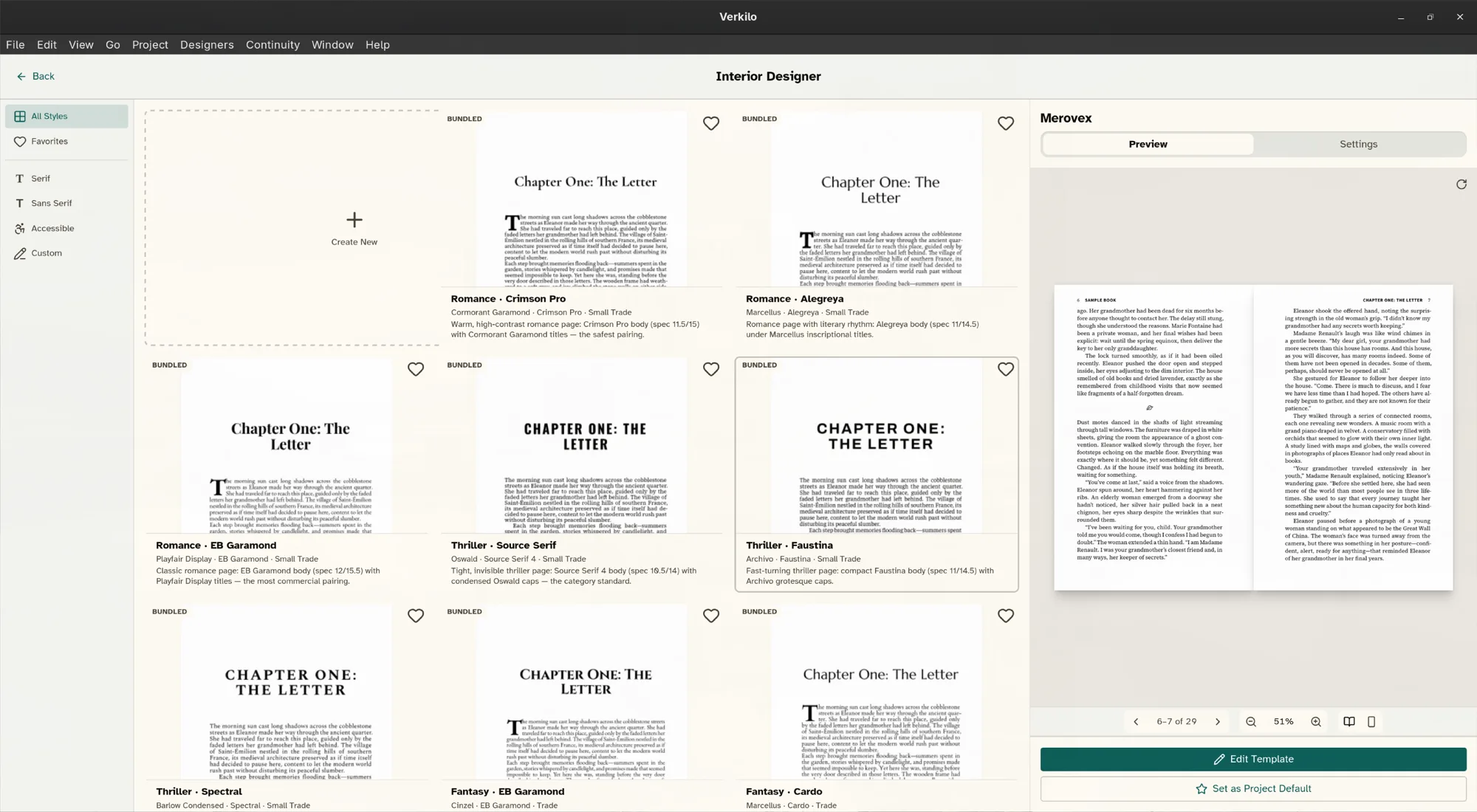
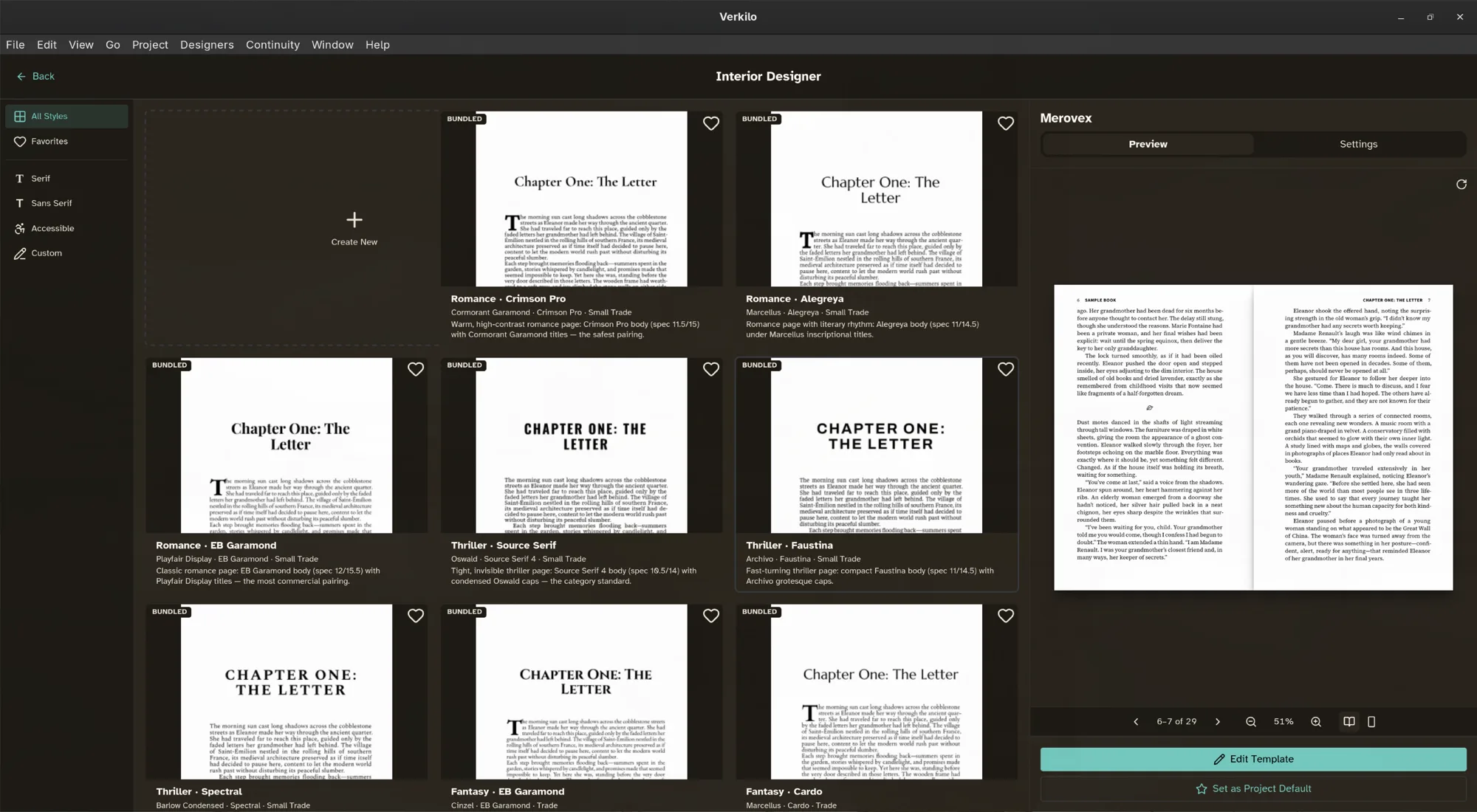
Choose an Interior Design — the typographic template the pages are set in. The dialog tells you which one it’s about to use and where that came from: this book’s own, the project default, or the built-in.
-
Click Export and choose where to save the file.
Book-quality typography is applied on the way out — balanced margins, widows and orphans handled — so a printed proof looks like a real book, not a manuscript printout.
Choosing a different interior#
Picking a template in the export dialog overrides the book’s own for that export only, which makes it a safe way to compare two designs: export twice, look at both, then set the winner in Book settings so it sticks.
To see the templates in full before deciding, click Open Interior Designer from the dialog.
Front and back matter in your files#
Both formats take their opening and closing pages from the book’s Front & back matter tab, in that list’s order. Pages set to Print appear only in the PDF; pages set to Ebook only in the EPUB. The ebook has no half-title, and its contents page sits wherever the list puts Contents.
A dedication is set centered and in italics about a third of the way down the page. An epigraph is set as an indented quotation, with its last paragraph as the attribution. See Front and back matter.
Proofing before you publish#
Export a PDF at your real trim size and read it on paper, or at page size on screen. Line breaks, chapter openings, and pacing all read differently once the page stops being a scrolling window.
DOCX for editors#
Need to hand your manuscript to an editor or agent? Export to DOCX instead and they can work in Word with tracked changes.