Front and back matter
A published book is more than its chapters. Before the story come the title page, the copyright page, maybe a dedication or an epigraph. After it come acknowledgments, an author’s note, a list of your other books, a page about you.
Verkilo keeps all of these in one list for each book, on its own tab. The sidebar stays free for the story itself.
Opening the list#
- Go to Books (
⌘1/Ctrl+1). - Click the Book settings button on the book’s card.
- Choose the Front & back matter tab, between Copyright page and Goals.
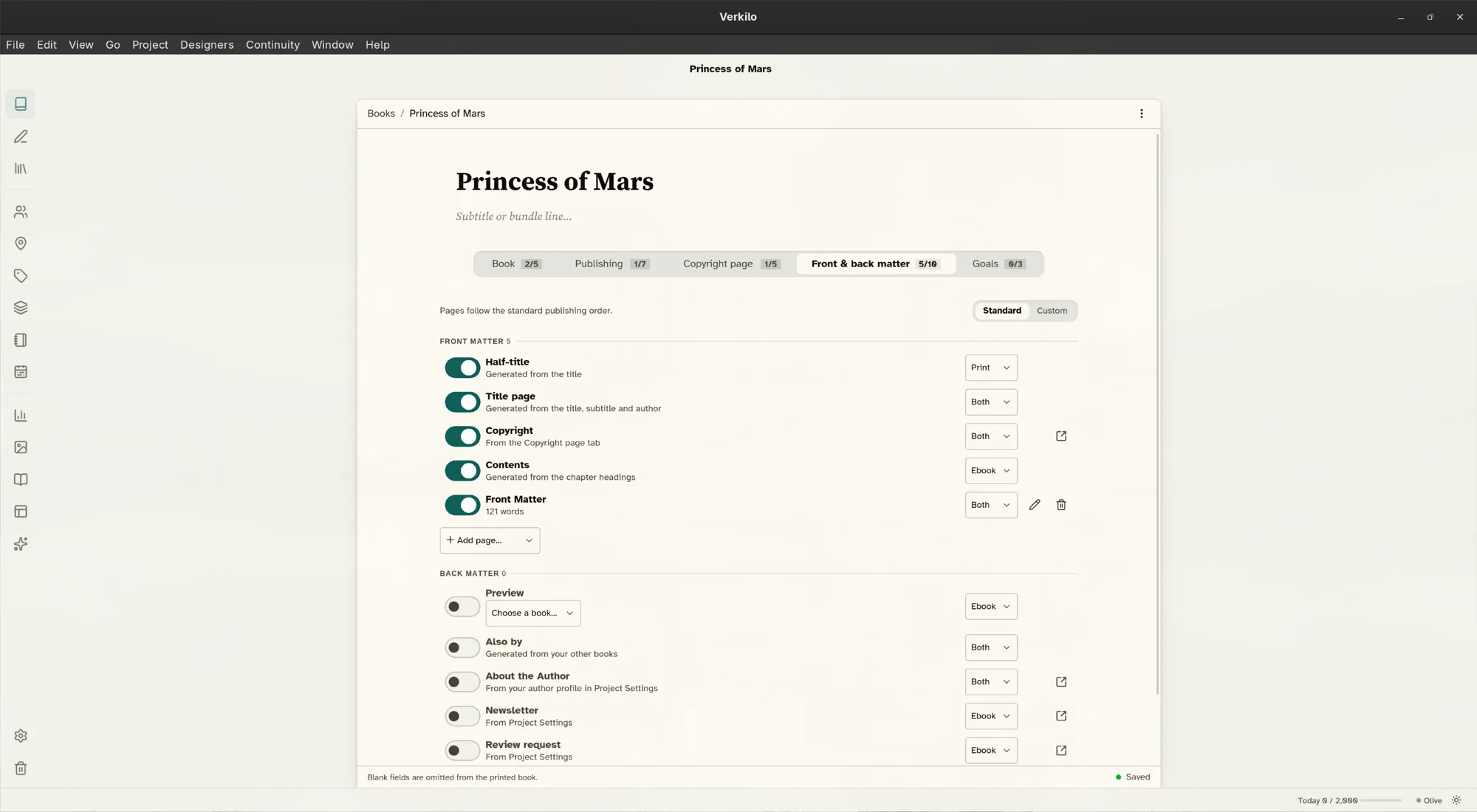
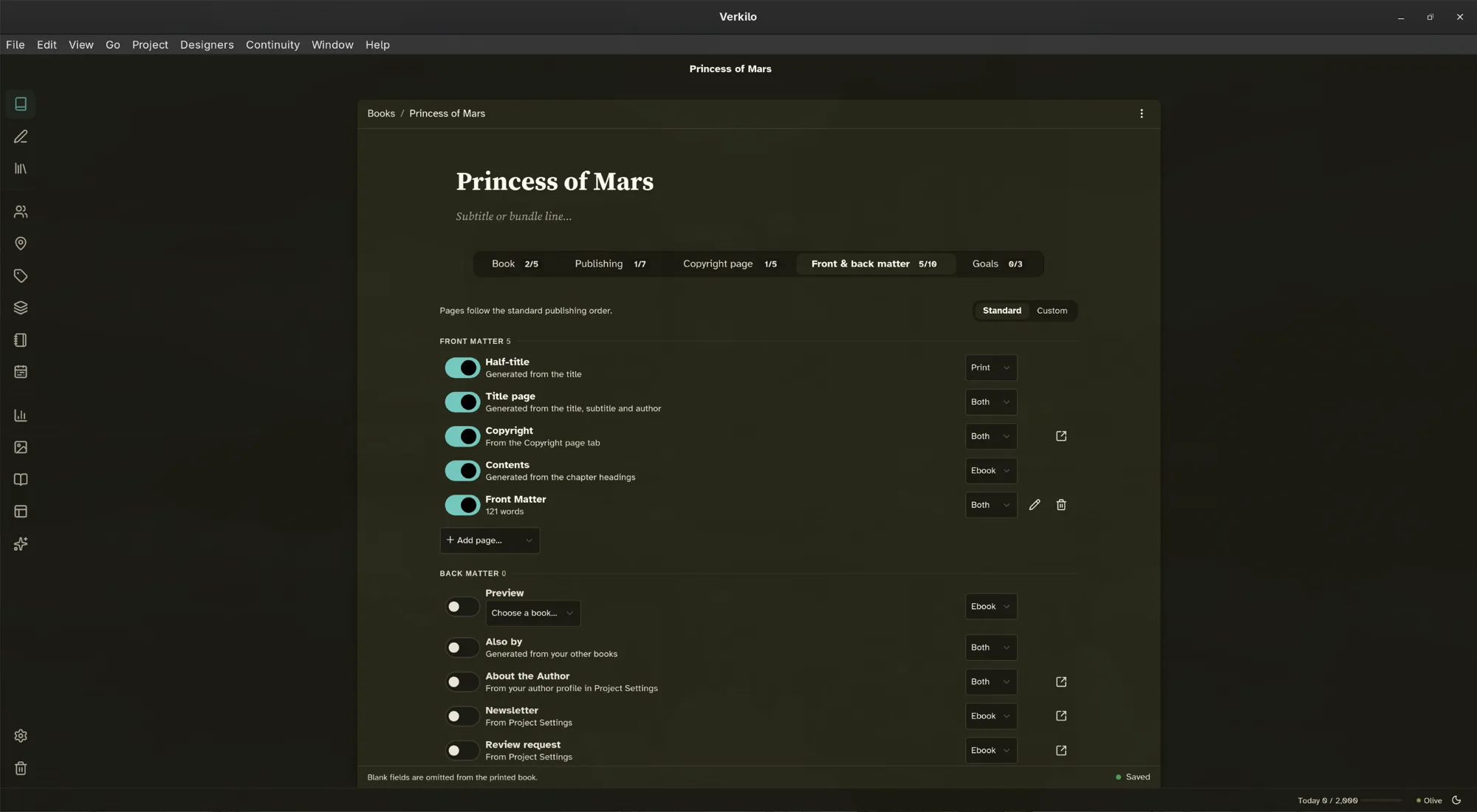
The tab has two lists, Front matter and Back matter. Each page is one row:
- A switch — on means the page goes into your exports. Off keeps it in the list but leaves it out of the book.
- The page’s name, with a line underneath saying where its text comes from, or how many words you’ve written.
- A format picker — Both, Print, or Ebook.
- Actions — edit, move to the Trash, or jump to where the page’s text lives.
Adding a page of your own#
-
Under Front matter or Back matter, open + Add page….
-
Pick the kind of page you want:
Front matter Back matter Content note Afterword Dedication Author’s note Epigraph Acknowledgments Foreword Glossary Preface Appendix Cast of characters Other page Other page -
The new page joins the list, switched on. Click its pencil to write it.
Use Other page for anything the list doesn’t name.
Writing and editing a page#
- Click the pencil beside the page. Its text opens right there, under the row.
- Write or revise.
- Click Save to keep your changes and close it.
Changed your mind? Click Cancel, or press Esc, and the page closes as it was.
To get rid of a page, click its trash icon. The page goes to the Trash, like a section. Restore it from the Trash and it comes back to the list.
Pages Verkilo makes for you#
Some pages are built from what Verkilo already knows. You don’t write them — you only decide whether they go in.
- Half-title
- Just the book’s title, on its own page. Print only.
- Title page
- The title, subtitle, and author.
- Copyright
- The text from the book’s Copyright page tab. Its edit button takes you there.
- Contents
- Built from your chapter headings. Ebook only to start with, since a printed novel rarely needs one.
- Also by
- Your other books in the project, grouped by bundle. Off until you switch it on.
- Preview
- The first chapter of another book in the project — a taste of what’s next. Pick the book in the row. Ebook only, and off until you switch it on.
- About the Author, Newsletter, Review request
- Written once for the whole project, in your author profile (below). Off until you switch them on. Their edit buttons take you to Project Settings.
Your author profile#
Some back matter is the same in every book you write, so you write it once.
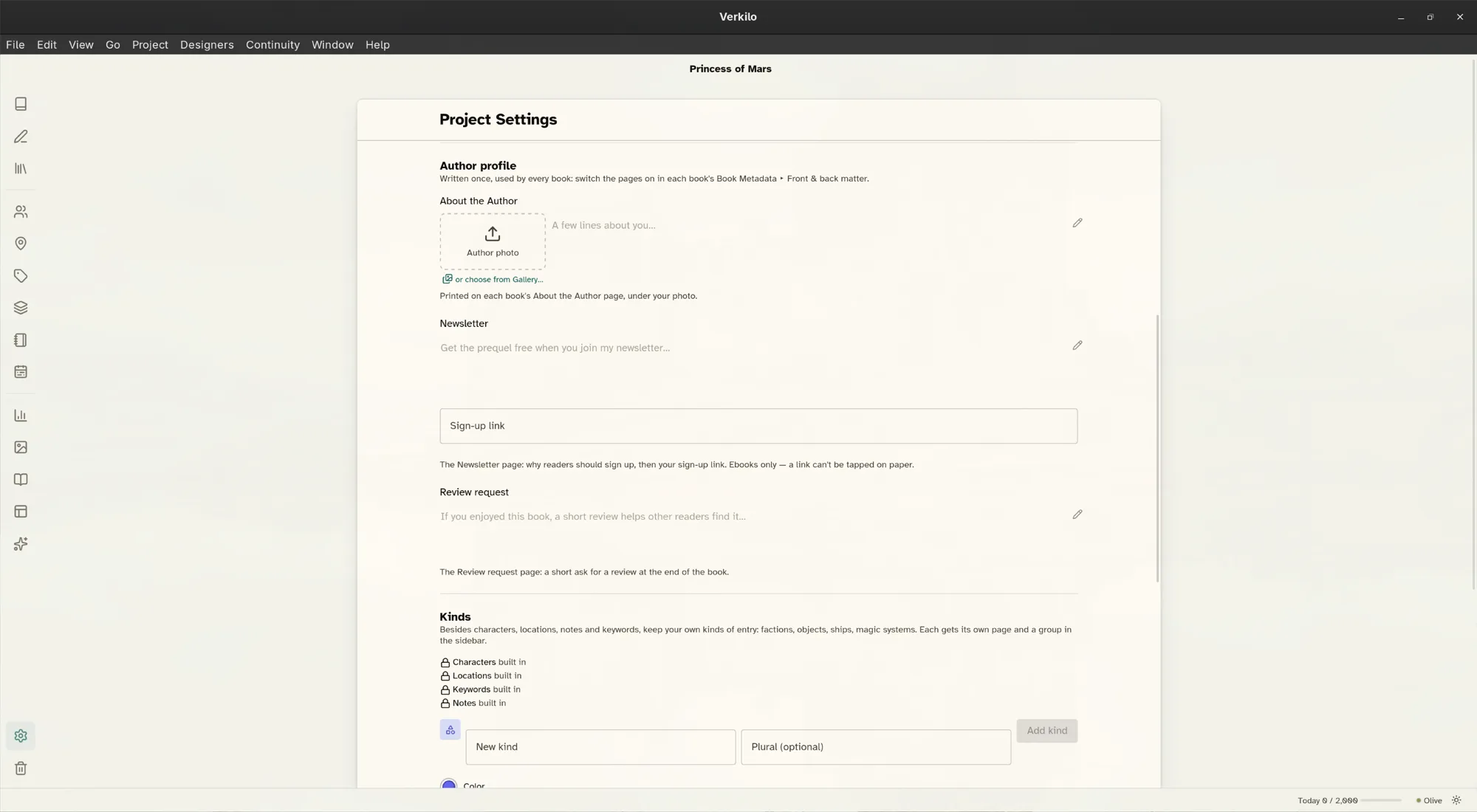
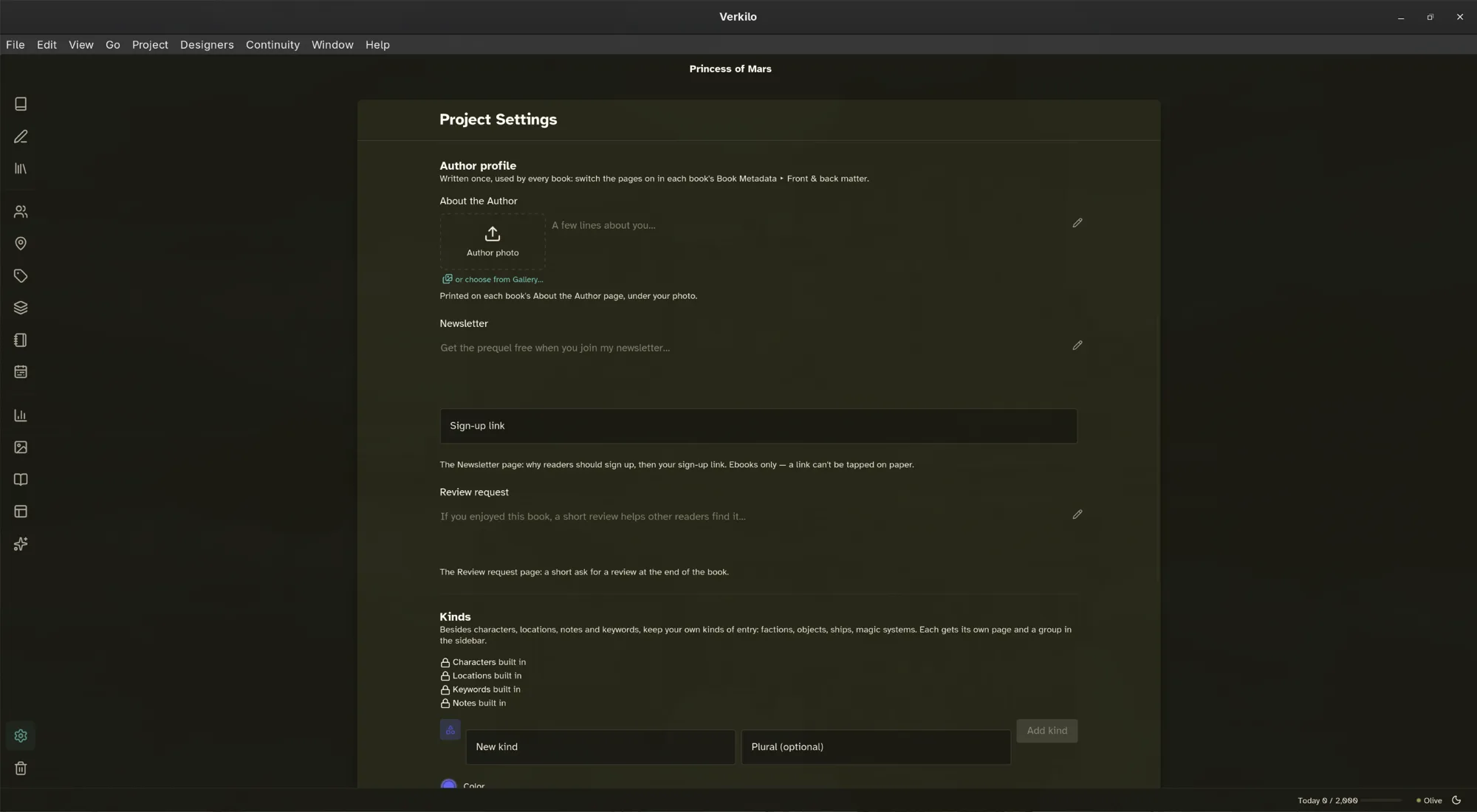
- Go to Settings on the rail. This opens Project Settings.
- Find Author profile.
- Fill in what you’ll use:
- About the Author — a few lines about you, and an author photo.
- Newsletter — why readers should sign up, and your Sign-up link. This page is for ebooks only, because a link can’t be tapped on paper.
- Review request — a short ask for a review at the end of the book.
Then switch those pages on in each book where you want them.
Choosing print, ebook, or both#
Each page’s format picker decides where it appears:
- Both — in your ebook and your print PDF.
- Print — in the PDF and Word file only.
- Ebook — in the EPUB only.
A newsletter sign-up belongs in the ebook, where readers can tap the link. A half-title belongs in print.
Putting the pages in order#
At the top of the tab, choose how the pages are ordered:
- Standard follows the order publishers use. You can’t drag pages while it’s on, so nothing ends up in the wrong place.
- Custom lets you set your own. Drag a page by its grip. From the keyboard,
focus the grip and press
Alt+↑orAlt+↓.
Choose Standard again at any time to put everything back in publishing order.
How your pages export#
Your ebook and print PDF follow this list exactly: its order, its switches, and each page’s format.
- A dedication is set centered and in italics, about a third of the way down the page.
- An epigraph is set as an indented quotation. If it has two or more paragraphs, the last one is set as the attribution.
- Every other page is set like a chapter, with its title as the heading.
A Word (DOCX) file opens with a standard title block, then your pages around the manuscript.
When you export a whole bundle as one ebook, each book keeps its pages. The export dialog decides whether to keep each book’s front matter, and whether to keep back matter for every book, only the final one, or none.
See Exporting overview for the rest of the export.
Books you started before 1.12#
If your book already had front or back matter, you’ll find it all on this tab, in the order you had it, set to Custom. Your exports come out exactly as they did, until you change something here.
Importing from Scrivener puts the project’s front and back matter on this tab too.