Exporting overview
When your draft is ready to leave Verkilo, export it to the format your reader, printer, or editor needs. Every export uses professional typography — curly quotes, proper em-dashes, and widows and orphans handled automatically so pages don’t break badly.
Exporting a book#
- Open the book you want to export.
- Press
⌘P/Ctrl+P, or choose File → Export…. - Check the title and author shown at the top of the dialog — that’s what will be printed on the file.
- Choose a Format: EPUB, PDF, or Word (DOCX).
- Set any options the format offers. PDF has the most; see EPUB and PDF.
- Click Export.
- Choose where to save the file, and confirm.
Verkilo assembles your sections in order and applies consistent formatting, so the result reads like a finished manuscript rather than a pile of scenes.
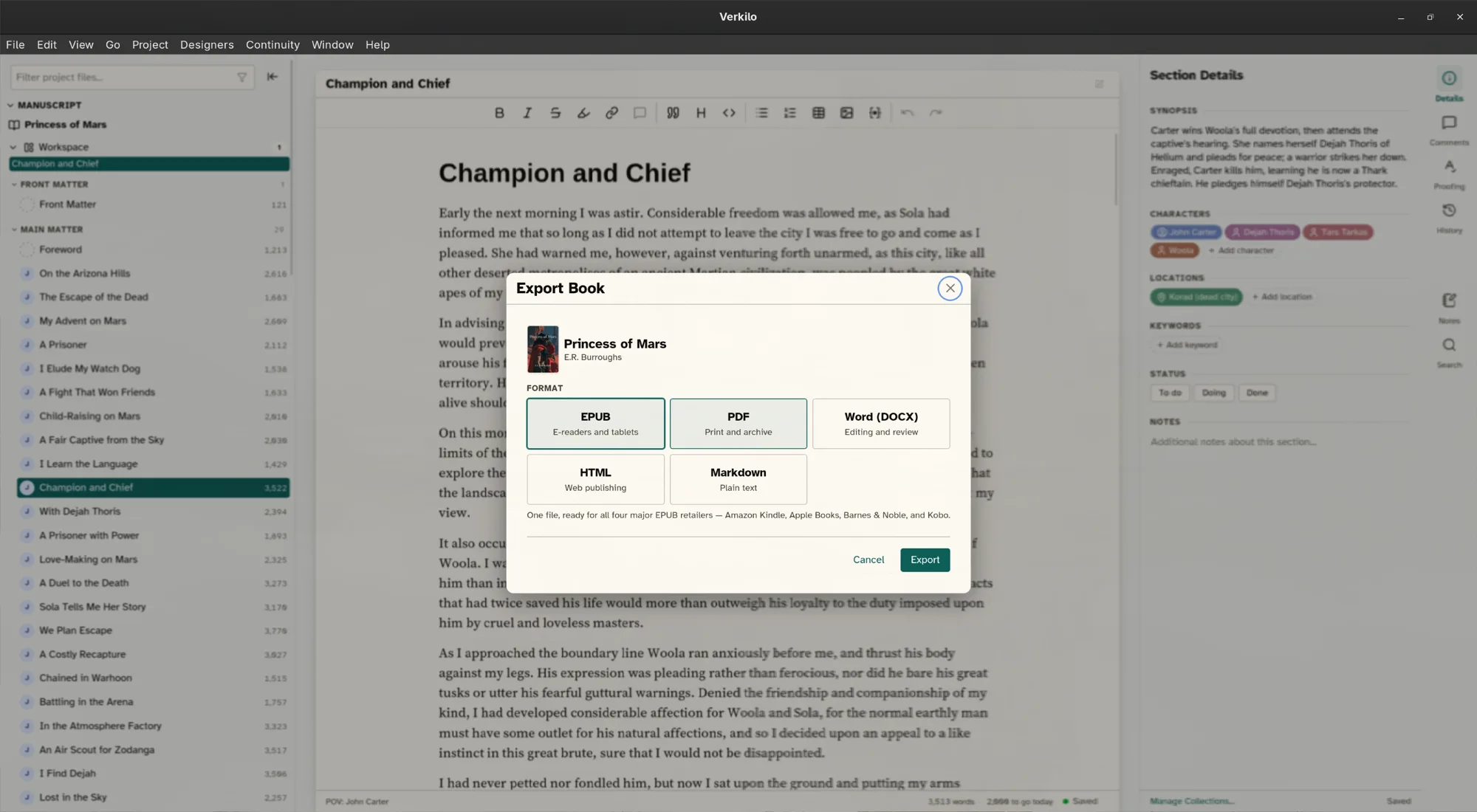
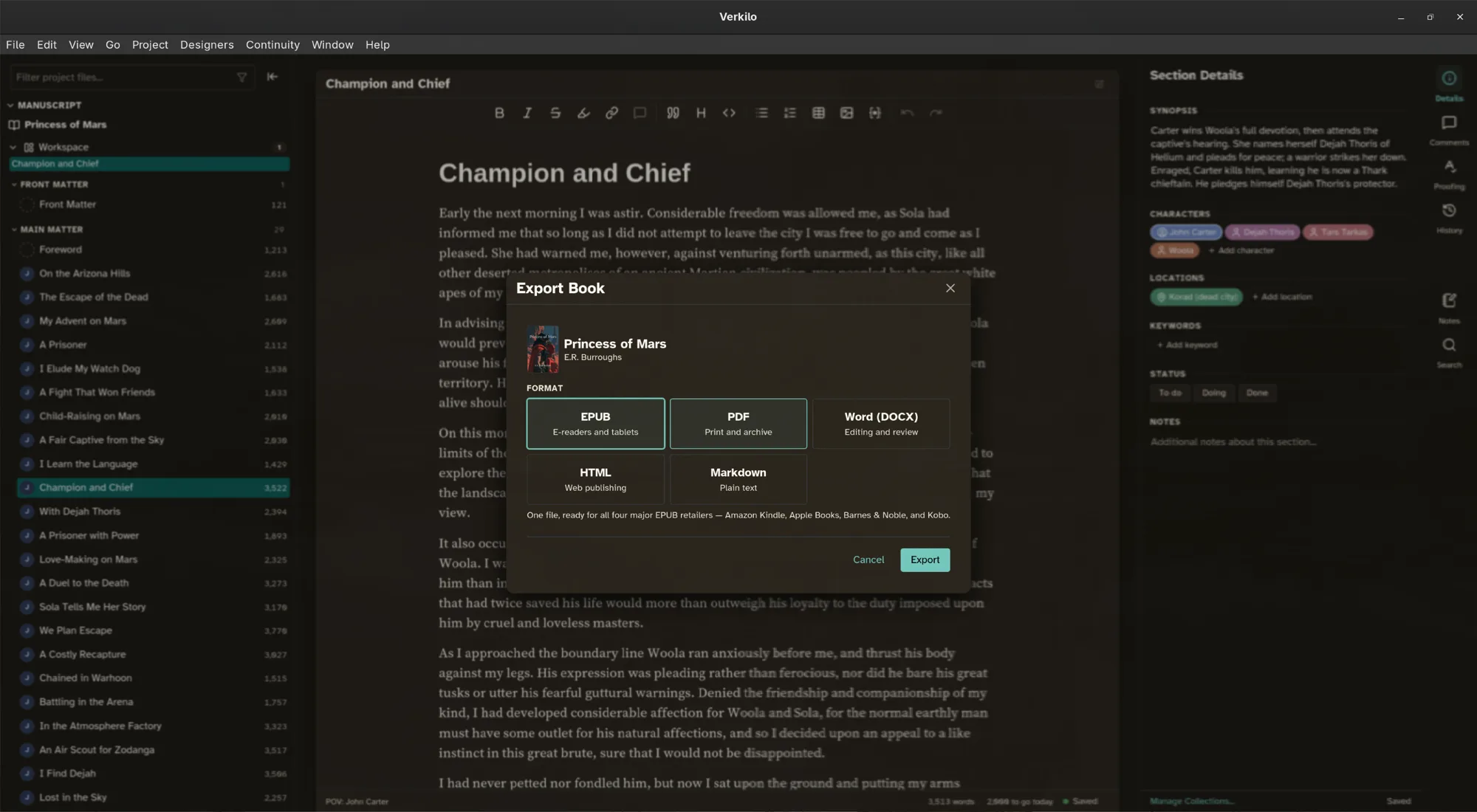
Supported formats#
- EPUB — for ebooks and e-readers.
- PDF — for print and proofing.
- DOCX — for editors and agents who work in Word.
- HTML and Markdown — for the web, plain-text tools, and archives.
Inline images and tables survive in every format.
To export your whole project — every book, character, location, and notebook entry — see Export your Verkilo data.
See EPUB and PDF and Exporting DOCX for format-specific options.
Choosing what gets included#
Export always takes the whole book. What varies is which sections that book counts as part of it — set per section, so the decision holds for every export you ever run rather than being remade each time.
- Right-click a section in the sidebar.
- Choose Compile In.
- Pick where it belongs:
Setting EPUB PDF and DOCX All Formats ✓ ✓ Ebook Only ✓ — Print Only — ✓ None (Reference Only) — —
Use Ebook Only or Print Only for a scene that belongs in one edition, and None for outlines and research you want beside the manuscript but never in the book.
The outliner shows every section’s setting in one column, which makes it the fastest place to check before a release.
Front and back matter#
The pages around your story — half-title, title page, copyright, contents, dedication, acknowledgments, About the Author, and the rest — come from the book’s Front & back matter tab, not from the sidebar. Your ebook and print PDF follow that list: its order, which pages are switched on, and whether each one is for print, ebook, or both.
- Go to Books (
⌘1/Ctrl+1). - Click Book settings on the book’s card.
- Choose the Front & back matter tab.
See Front and back matter for the whole list.
Where the details come from#
Title, author, copyright, imprint, and ISBN are read from the book, not typed at export time:
- Go to Books (
⌘1/Ctrl+1). - Click Book settings on the book’s card.
- Fill in the fields you need.
Anything left blank falls back to a sensible default — the copyright year to the current year, the copyright holder to the author.