Writing modes
Verkilo has three writing modes, and they’re independent — turn on one, two, or all three. Each has its own toggle in the View menu.
Distraction-free mode#
Dims every paragraph except the one your cursor is in, so the sentence you’re writing is the only one at full strength.
- Press
⌘⇧D/Ctrl+Shift+D, or choose View → Toggle Distraction-Free Mode. - Write. The dimming follows your cursor from paragraph to paragraph.
- Press the same keys again to turn it off.
The setting is remembered between sessions, so it’s still on the next time you open the project.
Typewriter mode#
Keeps the line you’re writing vertically centered on screen. Instead of your eyes drifting to the bottom of the window as the page fills, they rest in one place and the text scrolls up to meet you.
- Press
⌘⇧T/Ctrl+Shift+T, or choose View → Toggle Typewriter Mode. - Keep typing — the page scrolls to hold your cursor at the center.
- Press the same keys again to turn it off.
This setting is remembered between sessions too.
Composition mode#
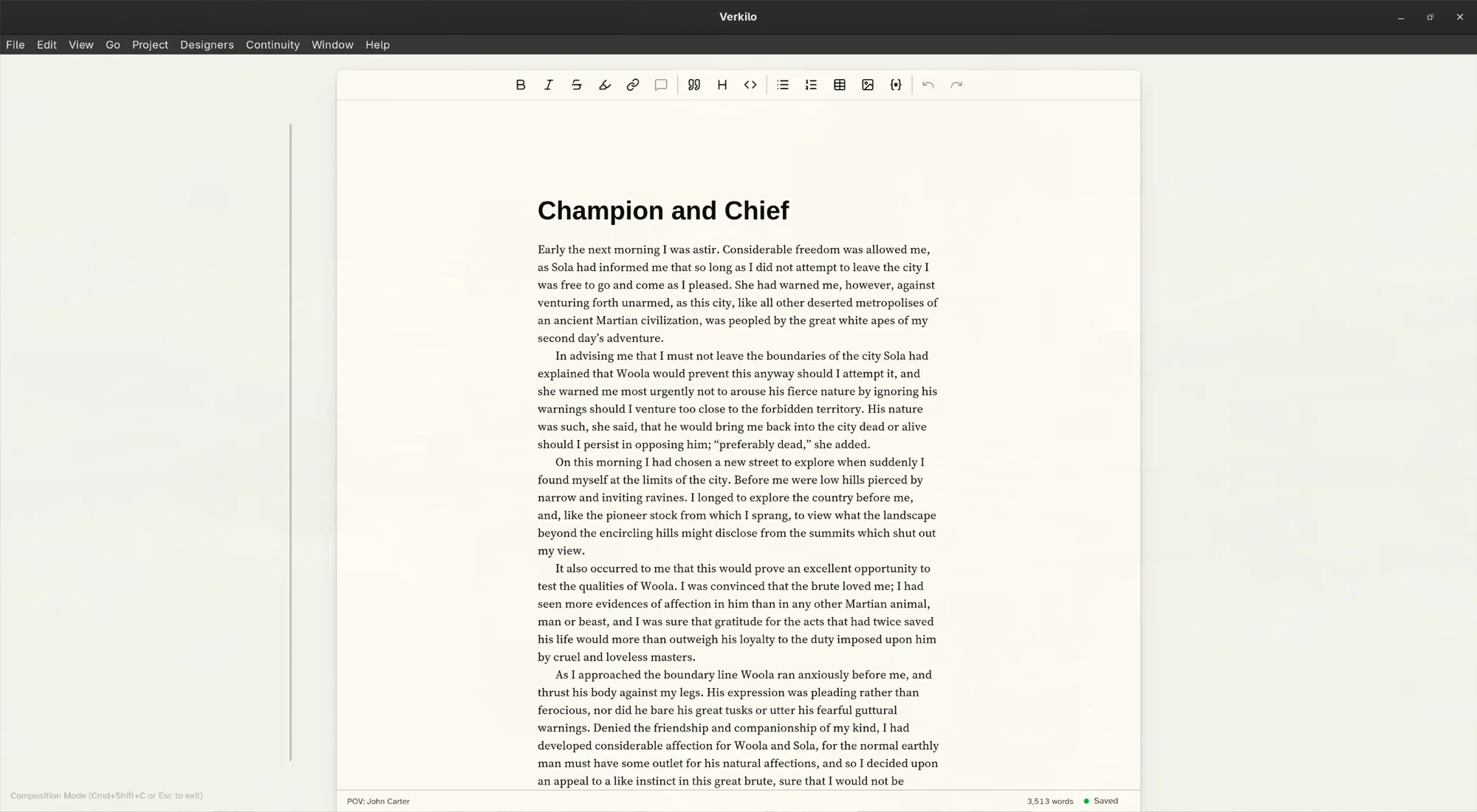
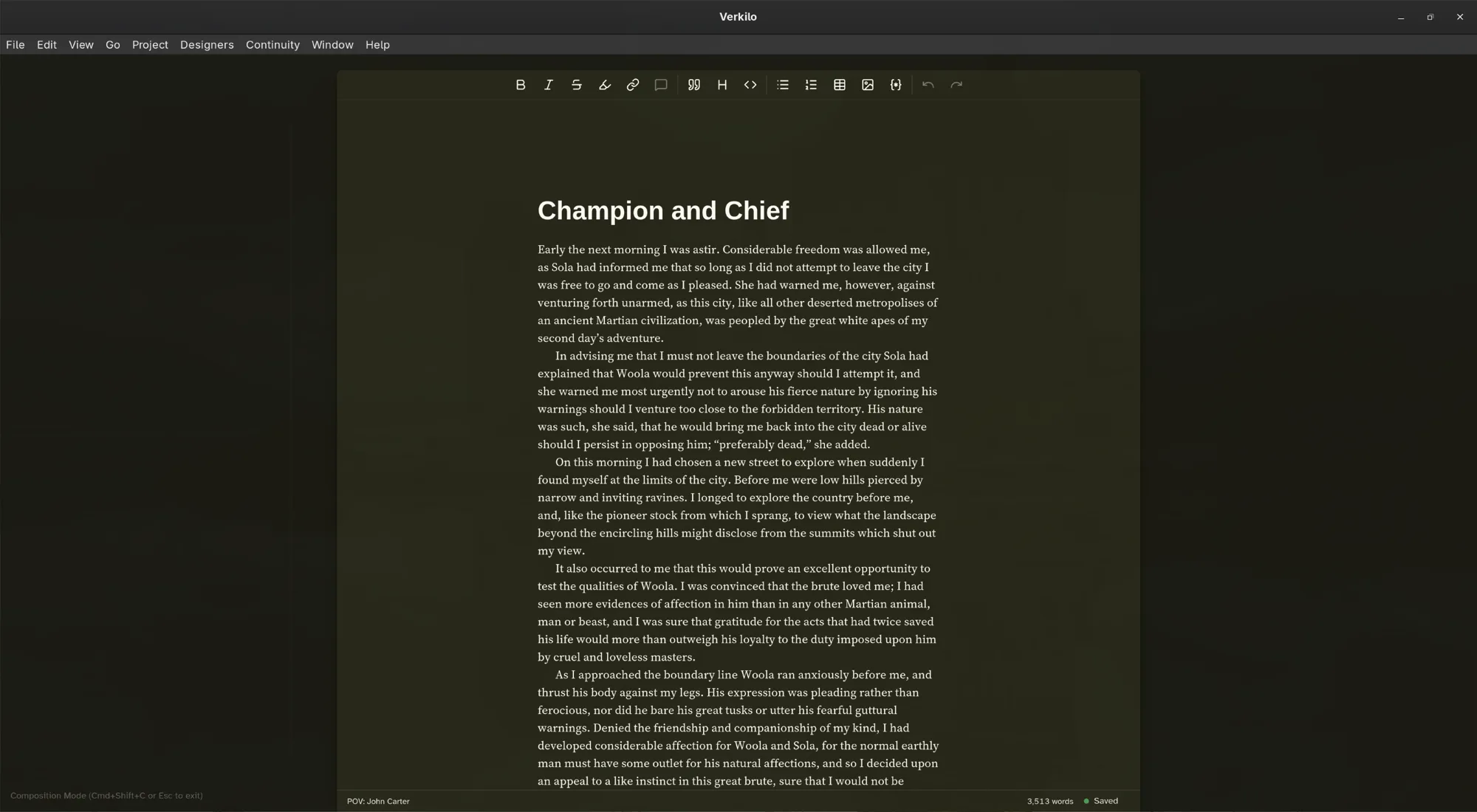
Hides the whole workspace — rail, sidebar, details panel, menus — leaving nothing but the page.
- Click the full-screen button at the right end of the bar above the page. Or
press
⌘⇧C/Ctrl+Shift+C, or choose View → Enter Composition Mode. - Write.
- Press
Esc(or⌘⇧C/Ctrl+Shift+Cagain) to come back. A reminder of both is shown on screen while you’re in it.
Composition mode isn’t remembered between sessions — you enter it deliberately,
each time.
A quieter page without a mode#
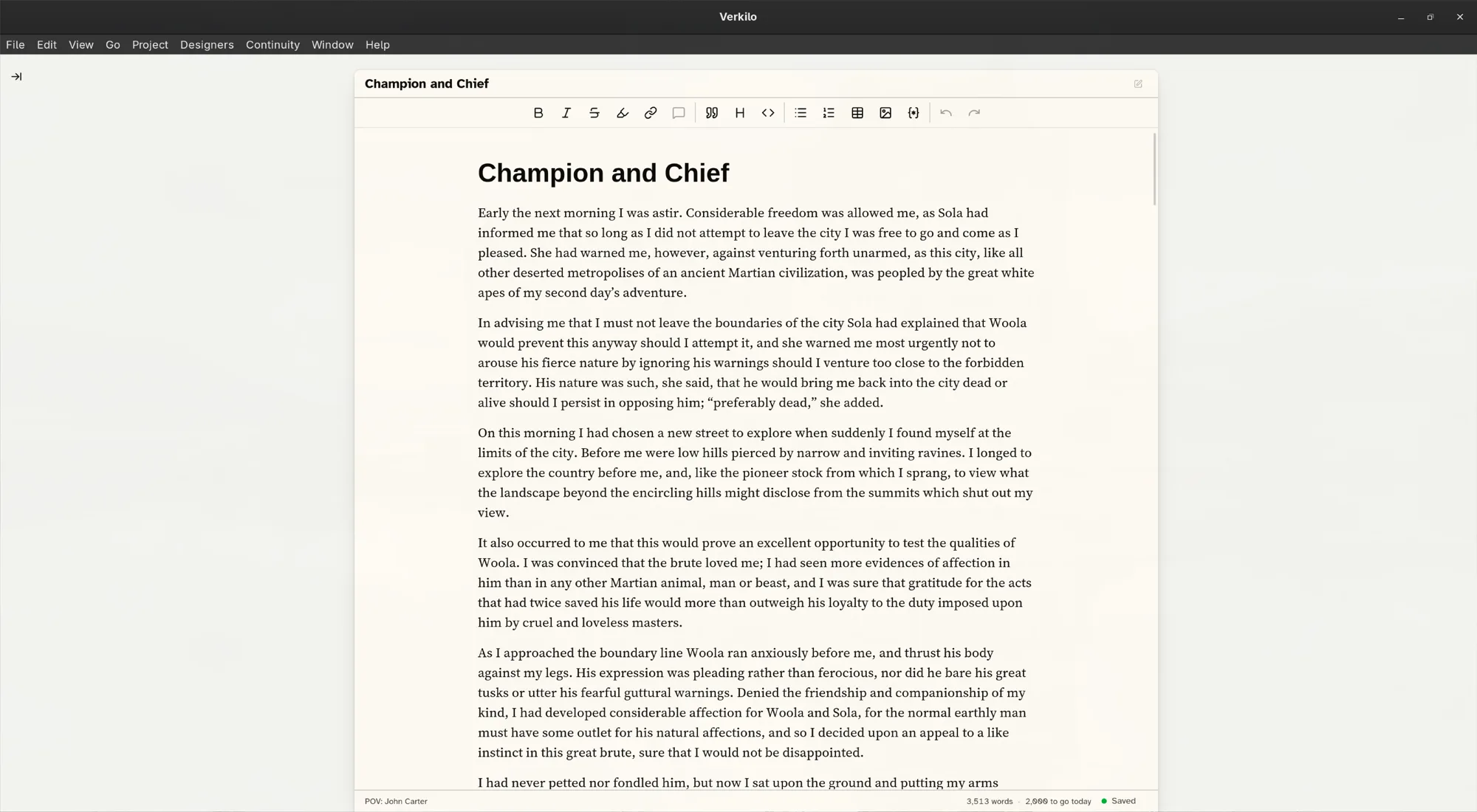
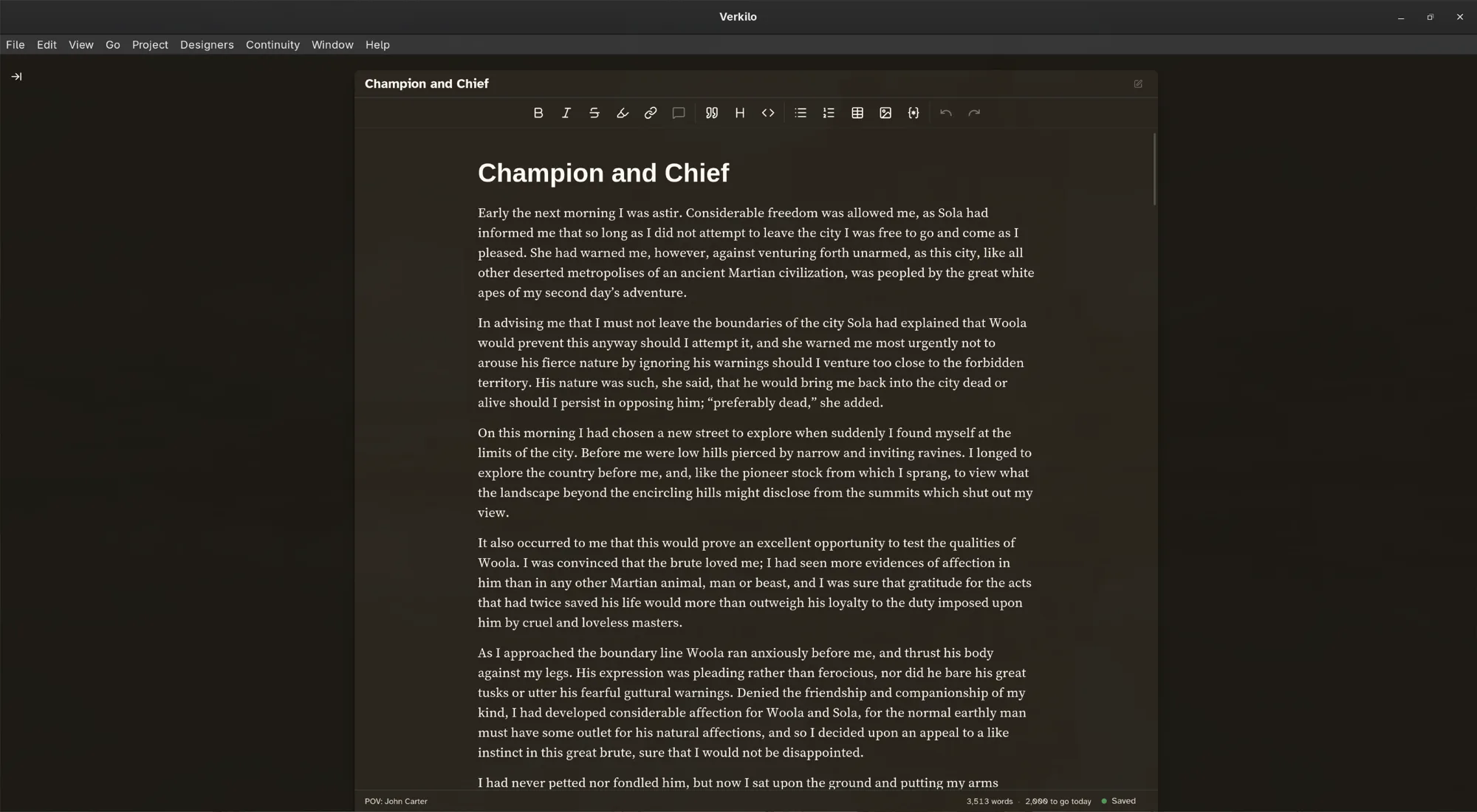
You don’t need a mode to clear the screen. Hide the sidebar with the Sidebar
button at the left of the app bar (⌘. / Ctrl+.), and the details panel with
the button at its right. The rail stays dim until you reach for it.
Putting them together#
The three stack, and most writers settle on a combination:
- Composition + typewriter — the closest thing to a page in a typewriter.
- Distraction-free on its own — keeps the sidebar available for jumping between scenes while still quieting the page.
- All three — a drafting sprint with nothing else on screen.
Pair any of them with a word-count goal to turn a vague “write today” into a concrete, finishable session.