Spelling and grammar
Verkilo includes a spelling and grammar checker that runs entirely on your computer. Nothing is sent anywhere — no network connection, no account, and no AI. It works even with every AI feature switched off.
Running a check#
Writing comes before editing, so the checker stays quiet until you ask.
- Open the section you want to check.
- Right-click anywhere in the editor and choose Check Spelling & Grammar.
- Wait a moment on the first run while the engine loads. After that, results are nearly instant.
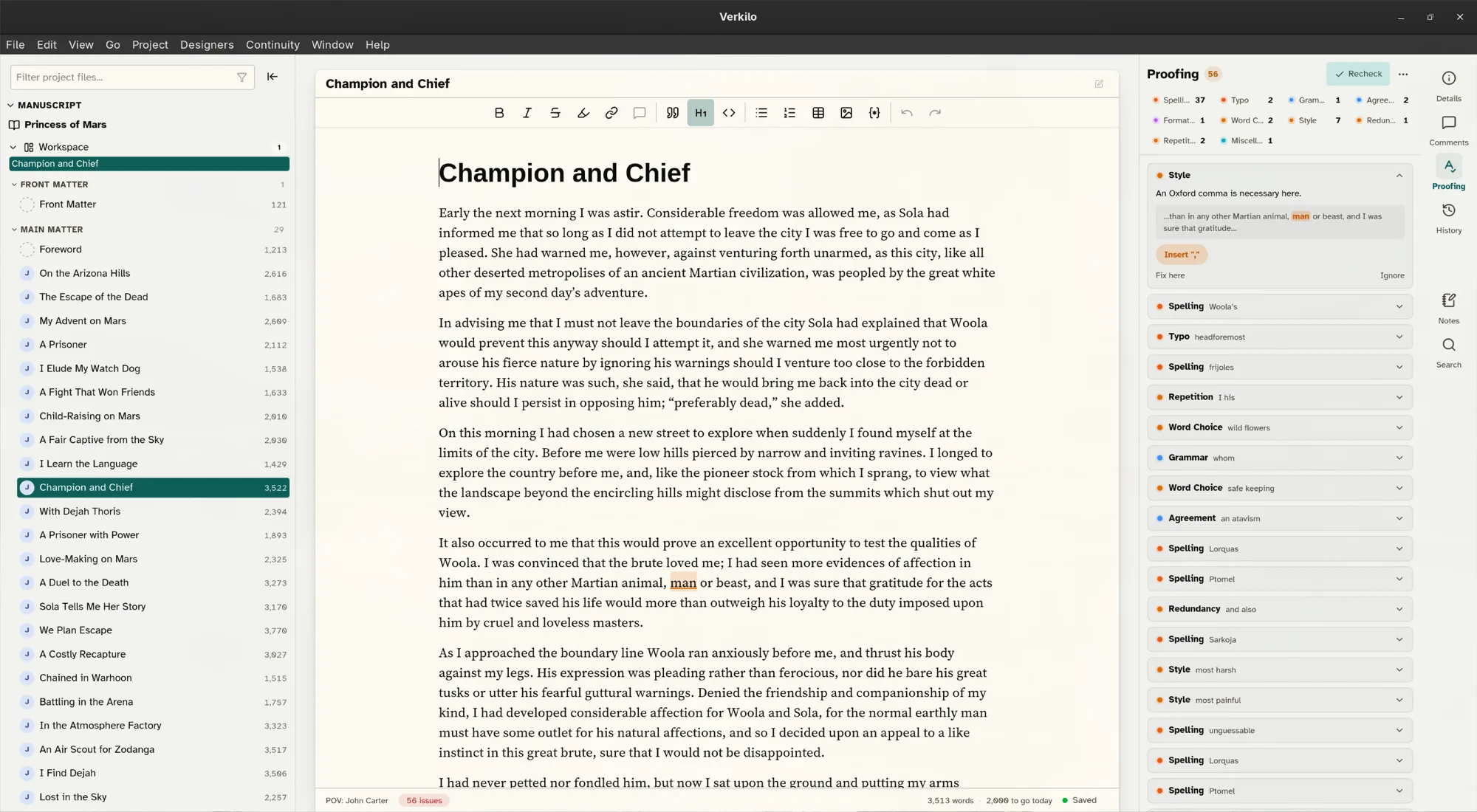
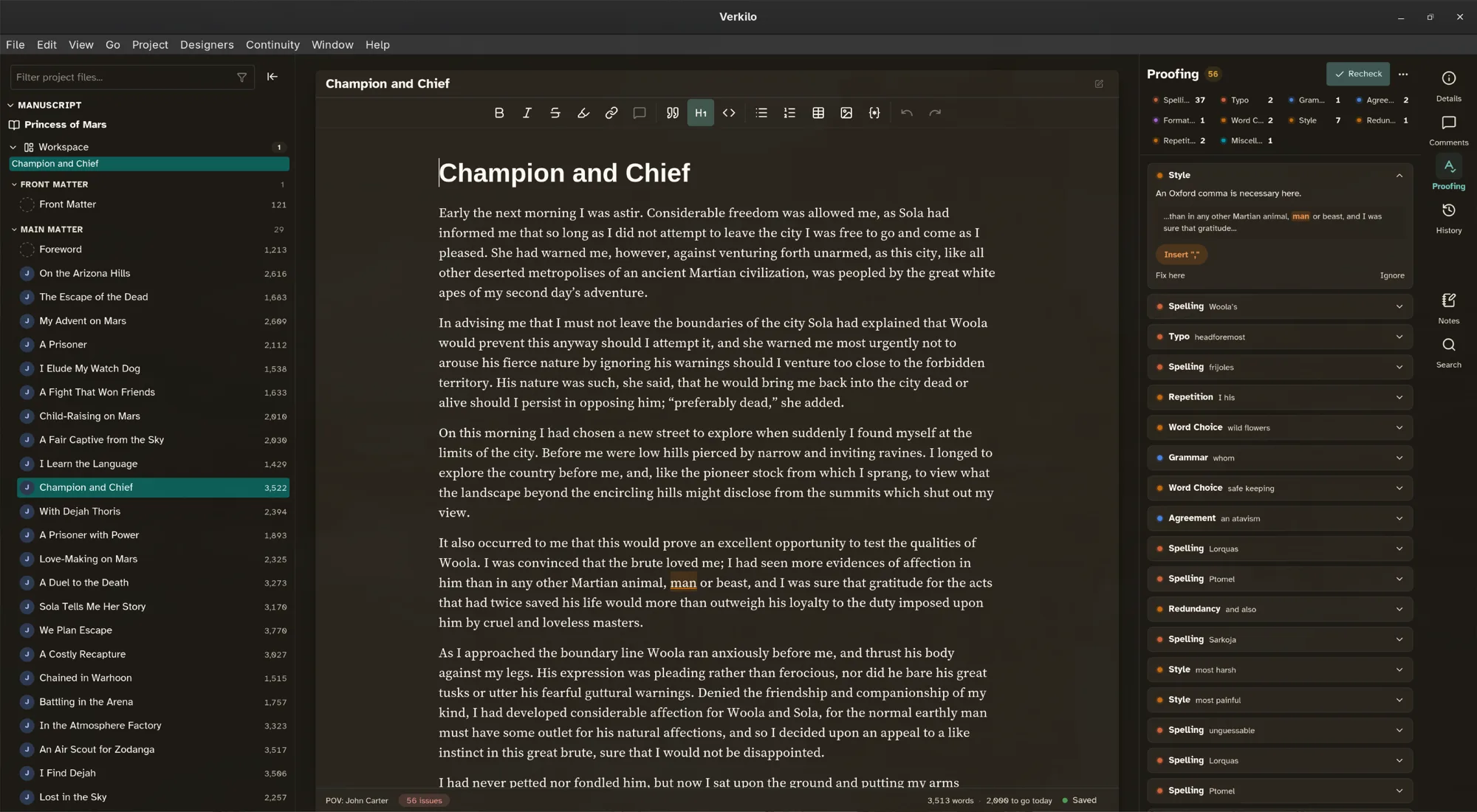
- Read the count in the line under the page — it shows how many issues were found. Click it to open the Proofing tab in the details panel.
Misspellings get a red underline and grammar issues get a blue one.
To deal with an issue:
- Right-click the underlined text.
- Pick a suggestion to apply it — undo works as you’d expect — or choose Ignore to dismiss that one instance, or Add to Dictionary so the word is never flagged again.
While a check is active, underlines follow your edits as you type. Choose Clear Grammar Check from the right-click menu when you’re done — or just move to another section, which ends the check too.
For the full list of what was found, open the Proofing tab in the details
panel, or choose Show Proofing from the right-click menu.
Checking while you type#
If you’d rather have continuous checking:
- Open Settings (
⌘,/Ctrl+,). - Find the Spelling & Grammar section.
- Turn on Check While Typing.
The checker then runs in the background as you write. You can also toggle it from the editor’s right-click menu.
Your dictionary, and your characters#
Words you add to your personal dictionary are remembered across sessions. Character and location names from your series bible are recognized automatically, so an invented name won’t be flagged in every scene it appears in.
To see or edit what you’ve added, open Settings → Spelling & Grammar and look under Personal Dictionary. Hover a word to remove it. Issues you chose to ignore are listed under Ignored Issues in the same place, so a dismissal made in haste can be taken back.
Built for fiction#
The checker understands six English dialects — American, British, Canadian, Australian, New Zealand, and Indian. To choose yours:
- Open Settings (
⌘,/Ctrl+,). - Find the Spelling & Grammar section.
- Pick from English Dialect.
Rules that fight fiction prose, like warnings about long sentences, are off by default. Every rule can be toggled individually:
- In the same section, scroll to Rules.
- Search for the rule by name — there are thousands, so the search box is the way in.
- Switch it on or off. Rules marked “off by default for fiction” are the ones we’ve already judged more trouble than help in a novel.
- Changed your mind about everything? Back to default clears every custom rule setting at once.
Languages other than English aren’t supported yet.