Word-count goals
Verkilo keeps a running count of your words and remembers your writing history so you can see momentum build across a project.
Where the counts are#
Two counts keep you oriented:
- Today — in the status bar along the bottom of the window, wherever you are in Verkilo. It reads like Today 1,240 / 2,000: the words you’ve written today, then your daily goal, with a progress bar beside it. Once you reach the goal, a trophy appears.
- N words — under the page in the editor, the length of the section you’re in. Hover it for an estimated reading time.
Setting your daily goal#
The quickest way is straight from the status bar:
- Double-click the Today figure. (Or tab to it and press
Enter.) - Type the number of words you want to write each day.
- Press
Enter.
To set it from Settings instead:
- Open Settings (
⌘,/Ctrl+,). - Find the Writing section.
- Enter a number in Daily Word Goal.
Either way it’s the same goal — the status bar starts counting against it immediately, and it carries across every project.
Giving sections their own target#
When you’re drafting to a chapter length, a per-section target is more useful than a daily one:
- Go to Books (
⌘1/Ctrl+1). - Click the Book settings button on the book’s card.
- Set Default Section Target to the word count a typical section should reach.
Reviewing your writing history#
- Press
⌘⇧A/Ctrl+Shift+A, or choose Go → Analytics. It’s also on the welcome screen as Writing History. - Read the heatmap of the past 365 days — darker squares are heavier days.
- Switch between Daily, Weekly, Monthly, and Sessions to change the grain. Sessions are the stretches you actually wrote in; see The Writing Record for those and for where every word came from.
- Filter to one book, or leave it on All books for the whole project.
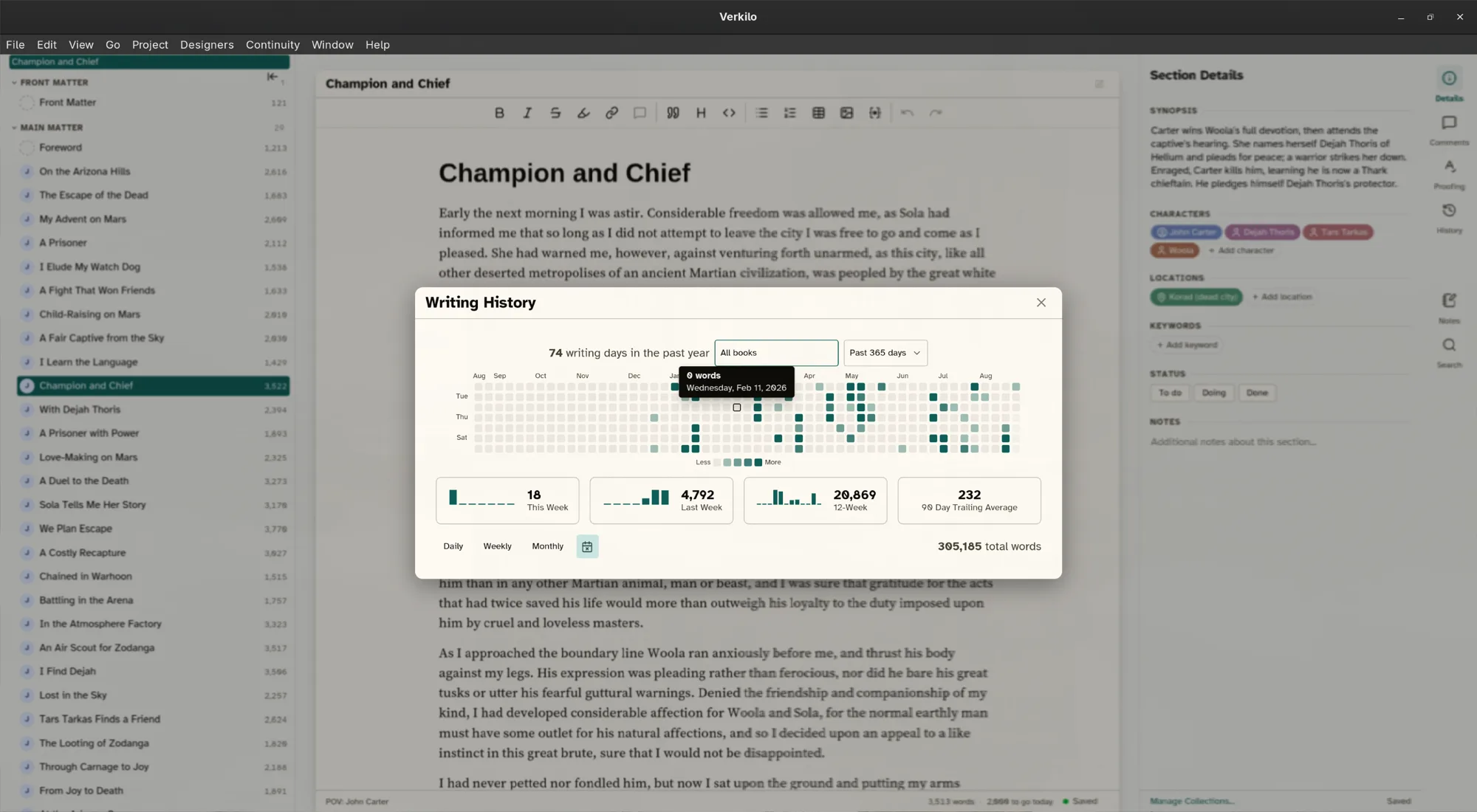
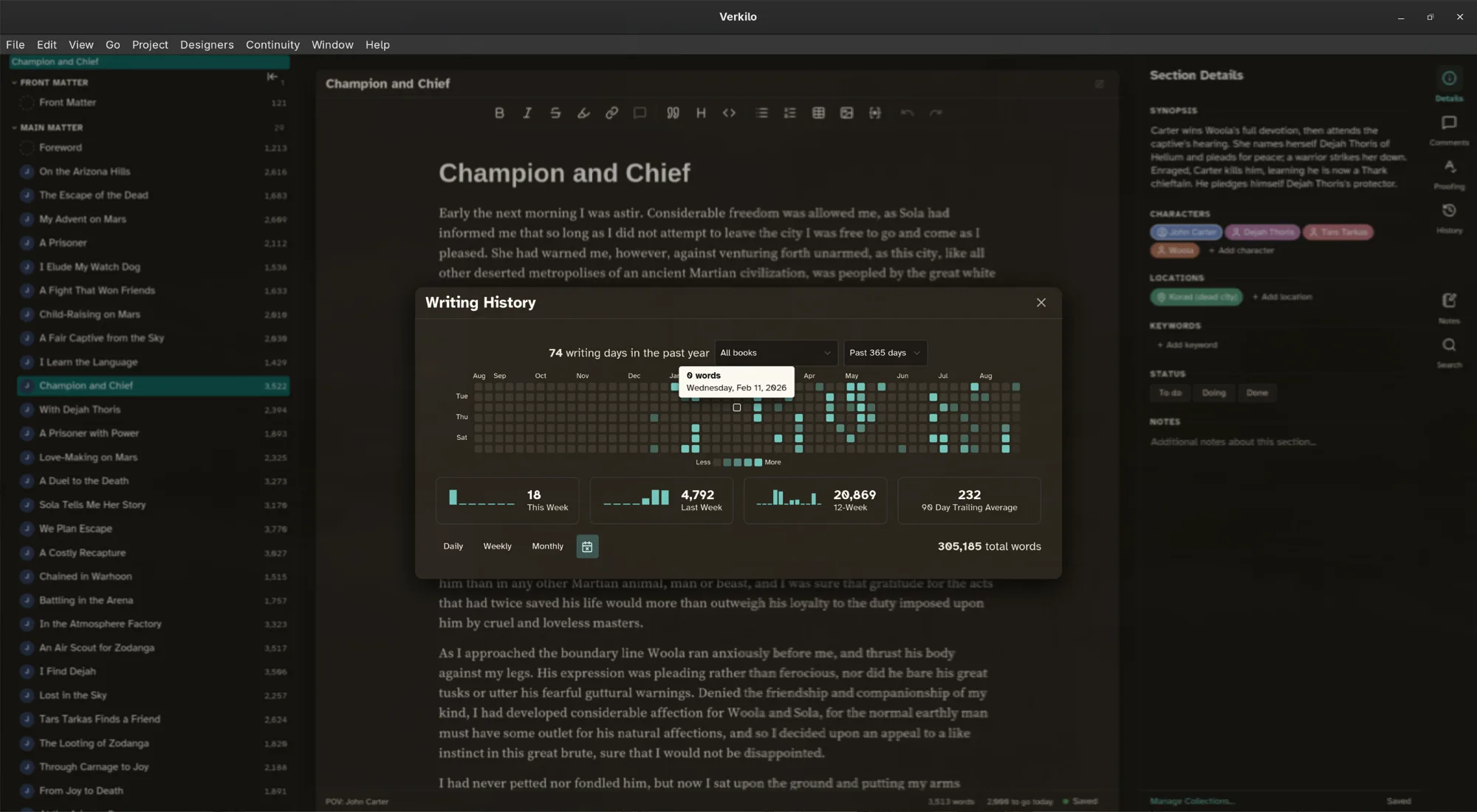
If you drafted somewhere other than Verkilo on a given day, you can type a manual adjustment against that date so the record stays honest.
Pairing with a writing mode#
A target and a writing mode work well together: set the number, enter composition mode, and write. When you come back out, the status bar shows how close you got.